Nov 24, 2015

It Has Finally Arrived!

When I heard the news, I will say that I was beside myself. So many of us have been waiting so patiently. Padlet is finally an app! Padlet, which is essentially a virtual bulletin board, allows you to post videos (without having to mess with YouTube or Vimeo), text, images, and links onto a Padlet wall. Some of us were using Padlet on mobile devices through our Internet browsers but it was always a bit glitchy. Now, we can use the app version. Simply log into the app with your padlet.com account and host your great work from within the app. Here are just a few ways in which we are using Padlet throughout our school:

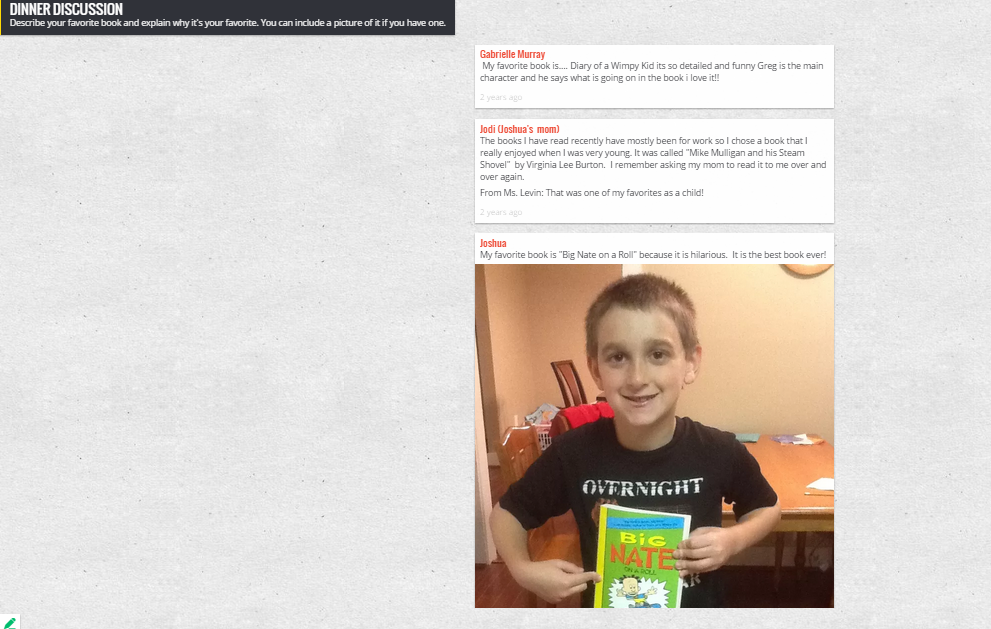
  • Dinner Discussions: Love the home school connection use here!
  • Sharing artwork


  • Communicating with other students around the world when the time difference prohibits Skyping
 

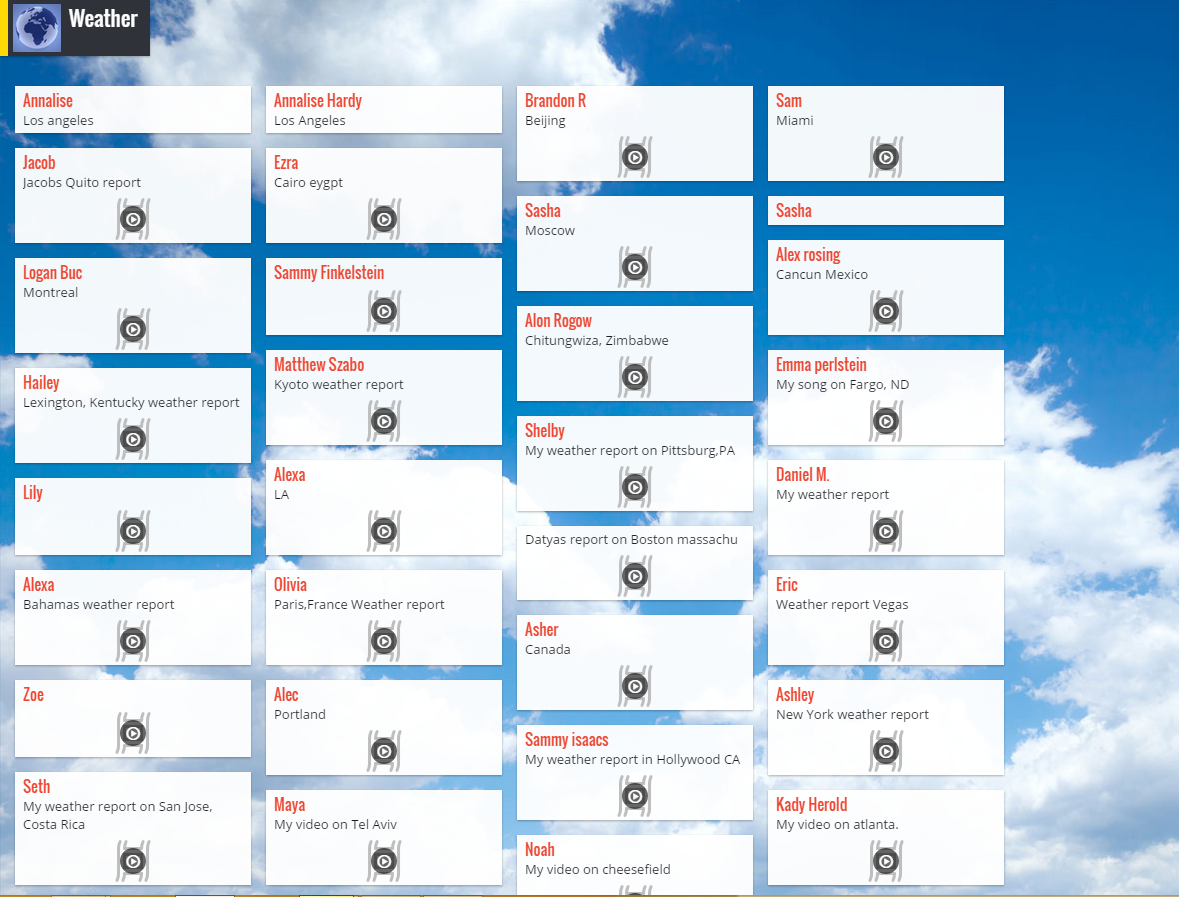
  • Sharing weather reports filmed in front of the green screen

  • Sharing commercials made in Social Studies


Accessibility is key so knowing we can use Padlet within the app is a game changer. 

Nov 10, 2015

App Creation with Tiny Tap


Today's tech tip is really quite awesome. It's an app called Tiny Tap that allows you or your students to create apps. It is suitable for any age. At GaETC, I learned that their is a Speech Pathologist, Ellen Weber, that creates apps with Tiny Tap quite regularly for her clients. If you would like to see the apps she has created (you can use them too!), click here. You must create your own Tiny Tap app on an iPad or iPhone but you can play and use the apps on an iPad, iPhone, or a computer. How great is that?! This is a free resource. You can use other people's apps for free too. 

The story behind the app is quite interesting. The creator of the app invented Tiny Tap to help him communicate with his mentally disabled father. He found it to be quite powerful and was sharing it at the SXSW conference in Austin, Texas. An educator at SXSW thought the app would be useful in his school and helped him leverage his market for the app. People that now know about Tiny Tap can't get enough of it. 

What are some ways that you can use it in your classroom?

*Students can create an app to learn about content
*Students can play each other's apps to study that content
*You can create an app to advertise a classroom event or even better, have your students create it (for example, the Hanukkah party)
*Students, Teachers, or Parents can create an app to assist with learning math facts
*You or your students can create an app to teach digital citizenship
*Students or teachers can create an app to practice site words
*Teachers can create an amazing activity to do on Grandparent's today- have students create an autobiographical app with their grandparent
*Teachers can use this app for differentiated instruction- have students create an app as an enrichment activity


To see an app that Ellen Weber created about Narrative Elements using the book Rosie Revere, Engineer by Andrea Beaty, click here. (It is one of my favorite picture books!) I can't emphasize enough what a "gem" this tech tool is and I hope you will find it to be fabulous too.

Nov 3, 2015

Follow Me This Sway

Created with Sway


There has been a lot of hype surrounding Sway so I thought I would go ahead and share it with you. Perhaps you have not heard of it yet? It is a tech tool created by Microsoft (but is compatible with iPads and iPhones) that allows you to create story lines, presentations, cards, newsletters, and just about anything else that you wish. It is like a Tackk, Smore, Powerpoint, Storify, and Canva tool all wrapped into one. What is its purpose? It can be used to create a webpage, a photo journal, a how-to presentation, an event flyer, a syllabus, an interactive social studies lesson, a research project, a commercial for a new product, a vocab lesson, and more. You can use it for just about anything. 

If you would like to learn more, there is a tutorial here. Another feature of Sway is that when you search for images within Sway, by default, it directs you to images that have creative commons licenses. You can uncheck a box to take that default option away but you probably wouldn't want to do that. If you would like to read a Sway about how to create a Sway, click here. I have discovered that you could spend hours creating in Sway. Sway might just sway you to create something great!

Oct 27, 2015

Entering Into Another Dimension

http://www.classtools.net/movietext/

Today's Tuesday tech tip is very simple. Sometimes simple is best. As you may have noticed by now, I'm a big fan of www.classtools.net. They have an ever-changing fun collection of tech tools that I find are easy for teachers to use in their classrooms. I've spent quite a few of my Tuesday Tech Tips sharing tools from www.classtools.net. Very recently, they added a new feature. It is a Star Wars-like text creation tool, similar to one of the credit templates that is found in iMovie. You can click on the "text box", add your own text, and it will scroll across the screen along with the Star Wars sound effects. What I like about it, is that it makes for a fun "hook" when introducing an assignment. You can also use it as a writing prompt, "In a galaxy far far away...". Even better, when you click on the link here, they provide their own fun ideas for how to use this in the classroom, all of which adds to the excitement in your classroom.

Oct 20, 2015

Discover Something New With Google EDU

Today's Tech Tip is unusual. You may or may not remember me sharing information about Symbaloo, which is a website that allows you to create a webmix consisting of icons that when clicked, take you to different websites, typically related to one topic. Well, today's tech tip is all about a Symbaloo that was created to showcase the many educational components associated with Google. It. Is. So. Neat. The webmix is called Google EDU Dashboard. When you click on one of the Google icons, it will take you some place interesting. For example, if I click on the icon with the blue heart, it takes me to a screen that says, "What do you love?". Naturally, I type in the word books and I get back a treasure trove of all things related to books. It's actually a dangerous discovery for me. Why am I sharing this resource with you? Many of these Google sites were created with 20% time. If you don't know, Google's 20% time was an initiative that allowed Google employees to spend 20% of their work time exploring projects of their own interest. From this, Gmail, Google Earth, and other well-known Google apps have been created. It is a great way to demonstrate to your students what the power of building in a little time for creative thinking can inspire. It is also a great center activity for students to uncover the power of collaboration. After all, none of these applications were created alone. If you would like to use it as a center, here is a Q&A form to encourage your students to dig deep. 


Sep 8, 2015

Create with Canva

Since this past Spring, I have been hearing about a tech tool that I have now had a chance to explore. I have become impressed with it and would now like to share it with you. This tool is called Canva and it allows you to create logos, flyers, collages, infographics, and more. What's even better is that Canva has developed an education portal to their website with lesson plans created by some of my favorite educators around the globe. Here's one lesson plan about using Canva to create a historical figure. Did I mention that it is free? Canva also has a built in photo editor. I plan to give my blog a face lift with the help of Canva. In addition to a lesson plan about creating graphs to represent percentages, see below for additional lesson ideas with Canva:

Not only is this tech tool fun, but it is so easy to use. What can you create with Canva?

Sep 1, 2015

iPad Centers for Literacy, Science and Math


There is an early elementary teacher in Canada that I think has some genius ideas that can also be adapted to meet higher level classrooms. Her name is Mrs. Wideen and I've been following her on Twitter for quite some time. She created these fantastic iPad centers that I just love and with her permission, I am sharing them with you today. The idea is to improve students' math and literacy with these independent center activities. Please find her original blog post here.

One of the most amazing center activities that she suggests, in my opinion, is the Animal Observation Station. I noticed that the app she suggests for this is no longer in existence but as a replacement, I found a fabulous app called Animal Cams- Watch Real Life Wildlife. It costs $.99 but it really is worth the investment. Students can select from a long list of animals that interest them and then they are instantly immersed in the animal's world. The web cam video feed is sharp and it feels as though you are in the wild with them. Using the animal observation sheet that Mrs. Wideen provides, your students can reflect on what they are seeing in the animals' natural habitats. It is awesome.

I am happy to help set these centers up in your classroom. Just ask!